
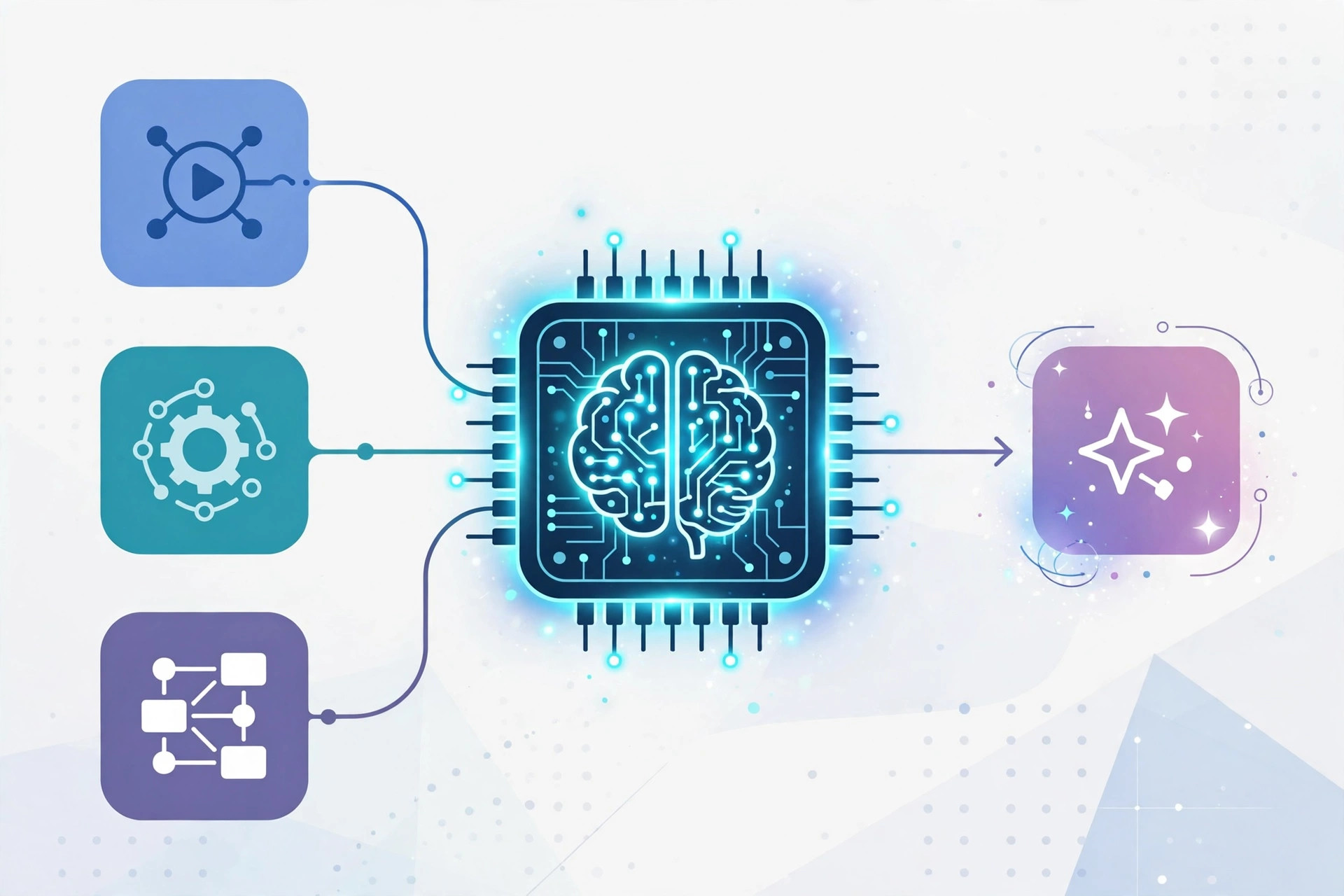
Connecting n8n OpenAI integrations together is one of the fastest ways to add real AI capabilities to your automations. Instead of writing custom code, you can use n8n's built-in OpenAI node to summarize emails, generate content, classify support tickets, or build AI agents — all with a visual, no-code workflow. In this guide, you will learn how to connect n8n to OpenAI API from scratch, including getting your API key, setting up credentials, building your first AI workflow, and handling common errors.
What You Need Before You Start
Before wiring up the n8n OpenAI connection, make sure you have these ready:
- A working n8n instance — you can use n8n Cloud, a Docker install, or self-host on a VPS.
- An OpenAI account — sign up at platform.openai.com.
- An OpenAI API key — created in your OpenAI dashboard under API Keys.
- Available API credit — OpenAI bills per token, so add a small amount of credit (even $5 is enough to start experimenting).
If you are planning to self-host n8n, a cheap VPS is the most reliable option. Contabo's cloud VPS plans are a popular budget choice for running n8n 24/7, and DartNode is another solid low-cost option if you want to keep your automation stack on infrastructure you control.
Step 1: Create Your OpenAI API Key
The first step in any n8n OpenAI setup is getting an API key. Log in to your OpenAI account and go to the API Keys page in the dashboard. Click Create new secret key, give it a name like n8n-automation, and copy the key at once — OpenAI shows it only.
Two important precautions here. First, restrict the key's permissions if your use case only needs certain endpoints. Second, never paste the key into a public workflow export or a screenshot you share online. Treat it like a password, because anyone with it can spend your credit.
Step 2: Add OpenAI Credentials in n8n
Now open your n8n instance and start a new workflow. Click the + button to add a node and search for OpenAI. n8n ships with an official OpenAI node that covers chat completions, assistants, image generation, audio transcription, and more.
When you first add the node, n8n will ask you to select credentials. Click Create new credential. In the credentials dialog, paste your OpenAI API key into the API Key field. If your account is behind a corporate proxy, you can also configure the base URL here, but for almost everyone the default is fine. Click Save and the credential test should pass — n8n validates the key by making a lightweight request to OpenAI.
Once saved, you can reuse this credential across every n8n OpenAI node in any workflow, so you only do this once.
Step 3: Build Your First n8n OpenAI Workflow
Let's build a practical example: a workflow that takes an input text and asks GPT to summarize it.
Add a Manual Trigger
Start with a Manual Trigger node (or a Webhook trigger if you want to call the workflow externally). Add a Set node after it and define a field like text with a few paragraphs of sample content.
Configure the OpenAI Node
Connect the Set node to the OpenAI node. In the OpenAI node's settings:
- Set Resource to Message a model (chat completion).
- Choose a Model —
gpt-4o-miniis fast and cheap, ideal for testing. Usegpt-4owhen you need higher quality. - In Messages, add a System message like “You are a helpful assistant that summarizes text into 3 bullet points.” and a User message referencing the input:
{{ $json.text }}.
Test and Inspect the Output
Click Execute step on the OpenAI node. You should see a response object containing the model's summary. The token usage is also returned, so you can watch your costs from the very first run.
Step 4: Advanced n8n OpenAI Patterns
Once the basic connection works, the n8n OpenAI combination really shines in more advanced patterns.
Using the OpenAI Assistant with Tools
n8n's OpenAI node can work with OpenAI Assistants and function calling. You can give the model access to other n8n nodes as tools — for example, letting the AI query your database or send an email after drafting it. This turns a simple chatbot into an agent.
Structured Output with JSON Mode
For automation, you usually need machine-readable output. Set the response format to JSON in the node options and instruct the model to return a strict schema. Then feed the parsed JSON into downstream nodes like Google Sheets, a database, or a webhook.
Batch Processing
Combine the OpenAI node with a Split In Batches node to process hundreds of items — summarizing support tickets, classifying leads, or translating product descriptions — while staying within OpenAI's rate limits.
Step 5: Handling Errors and Rate Limits
Every n8n OpenAI workflow will eventually hit an error, so build defensively:
- 429 rate limits: add a Wait node and enable Retry on fail in the node settings with exponential backoff.
- Invalid API key (401): the key was revoked or pasted incorrectly — regenerate it in the OpenAI dashboard.
- Insufficient quota (429 with billing error): add credit to your OpenAI account and check your usage limits.
- Context length errors: your input exceeds the model's token window — switch to a model with a larger context or chunk the input.
- Timeouts: long generations can exceed n8n's default timeout; increase the timeout in the node settings or split the task into smaller calls.
Also keep an eye on cost. A simple pattern: log each call's usage.total_tokens to a spreadsheet so you can audit spend per workflow. For high-volume jobs, gpt-4o-mini or batch API pricing keeps bills tiny.
Security Best Practices
Because the n8n OpenAI setup involves a paid API key and potentially sensitive data, lock things down:
- Store the API key only in n8n credentials — never hardcode it in expressions or Code nodes.
- Use n8n's environment variable encryption and restrict who can access your n8n editor.
- Avoid sending PII or secrets to the model unless your OpenAI data policy allows it; consider Azure OpenAI or a self-hosted model for regulated data.
- Rotate the API key periodically and use separate keys per project so you can revoke one without breaking everything.
Key Takeaways
- Connecting n8n OpenAI takes minutes: create an API key, add it as an n8n credential, and drop the OpenAI node into any workflow.
- Start with
gpt-4o-minifor cheap, fast results; upgrade togpt-4owhen quality matters. - Use JSON mode and function calling to turn AI output into reliable, machine-readable automation steps.
- Build in retries, batching, and token logging to handle rate limits and control costs.
- Keep your API key in n8n credentials only, and rotate it regularly.
Related Guides
- Best VPS Providers with Open Port 25 — if you are self-hosting n8n and also sending email from the same server, start with a VPS that keeps port 25 open.
- How to Install PowerMTA on Ubuntu 24 — pair your n8n automations with a dedicated mail server for high-volume transactional email.
- How to Install Zimbra Mail Server on CentOS 7 — another self-hosting guide for readers building their full automation and email stack on their own VPS.