


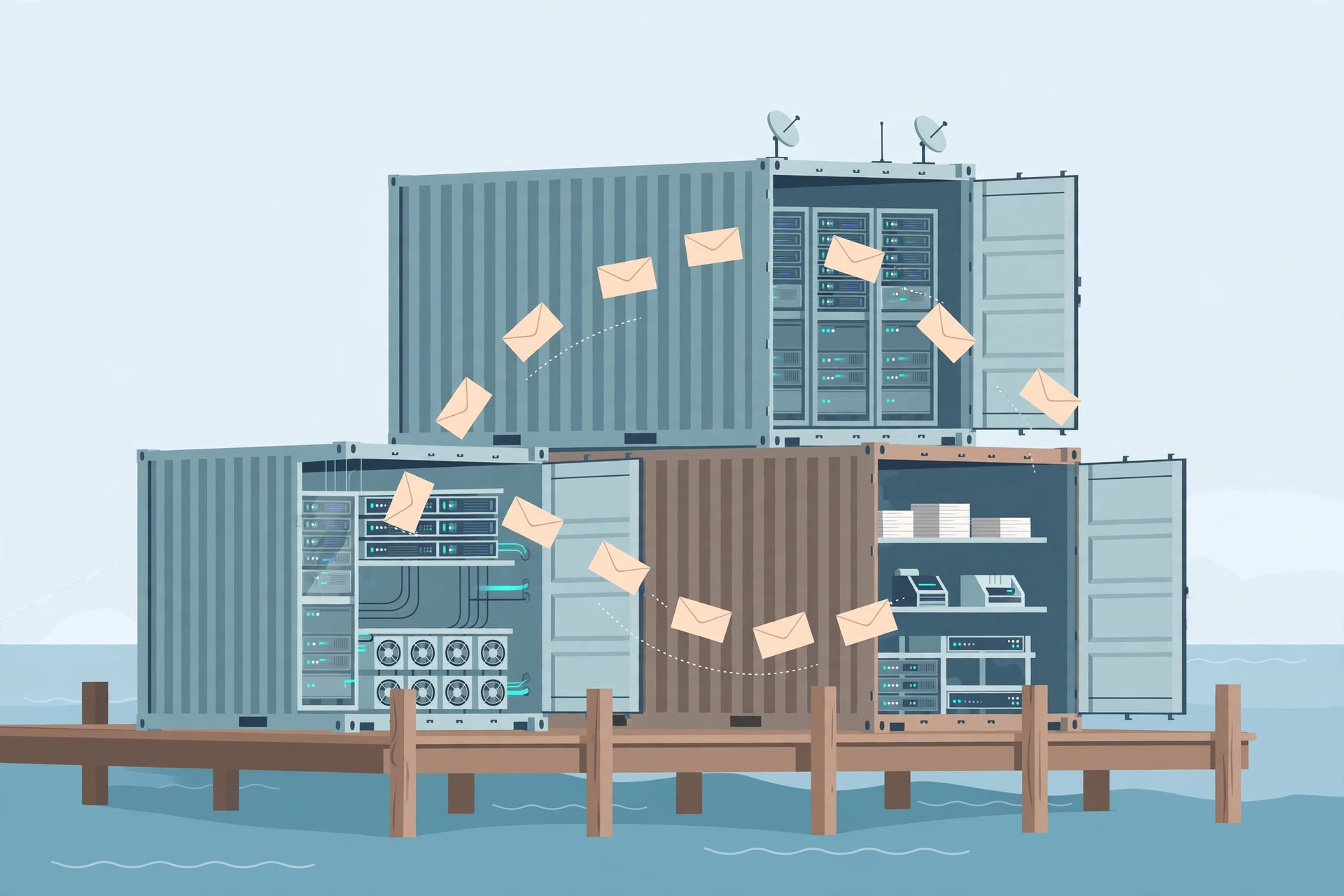
Postal is a modern, open-source mail server built for sending and receiving email at scale, and running it in containers makes installation far simpler than a traditional setup. This postal docker guide walks you through installing Postal on Docker, configuring DNS, creating your first mail server and domain, and sending your first test email — all on a single VPS.
Why Run Postal on Docker?
Postal bundles several services: a web interface, an SMTP server, a message queue, a database, and a web server. Installing each by hand is error-prone, and version mismatches cause strange failures. Docker packages every component into containers with known-good versions, so the whole stack starts with one command and upgrades are painless. If something breaks, you can rebuild a container without touching the rest of the system. You will need a VPS with at least 4 GB of RAM and a clean Ubuntu 22.04 or 24.04 install. Providers with open port 25, such as Contabo or RackNerd, work well for mail servers — many cheap VPS providers block port 25 by default, so confirm this before you buy.
Prerequisites and DNS Setup
Point a domain (or subdomain) at your server's IP address, for example postal.example.com. You will also need DNS records for every sending domain: an A record for the mail host, an MX record pointing to it, an SPF record authorizing it, a DKIM key that Postal generates for you, and a PTR (reverse DNS) record matching your mail hostname. Set the PTR record in your VPS provider's panel — without it, major providers like Gmail will distrust your mail. DNS propagation can take a few hours, so set these records before you start the installation.
Installing Docker and Postal
Step 1: Install Docker
Update your system and install Docker from the official repository rather than the distro's often-outdated package. Then verify the installation with docker --version and docker compose version. Postal's installer uses Docker Compose to orchestrate its containers.
Step 2: Run the Postal Installer
Postal ships a helper script that generates the configuration and Docker Compose files. Run it, answer the prompts for your hostname and database passwords, and let it pull the images. The first run downloads several images and can take a few minutes depending on your connection. Keep the generated passwords safe — they protect your database and the admin interface.
Step 3: Start the Stack
Start everything with docker compose up -d and watch the logs with docker compose logs -f until the services report healthy. Postal's web interface runs behind its own web container; point your browser at your hostname and you should see the setup screen. If a container keeps restarting, check its logs — the usual culprits are a port conflict (something already listening on port 25, 80, or 443) or a misconfigured hostname.
Creating Your First Mail Server and Domain
Postal organizes mail into organizations, mail servers, and domains. Create an organization, then a mail server inside it, then add a sending domain. Postal generates DKIM keys for the domain — copy the DNS records it shows into your domain's DNS zone. Next, create a credential (an SMTP username and password) for sending, and optionally a route for incoming mail. The web interface also shows message tracking, webhooks, and suppression lists, which are essential for managing bounces and complaints at scale.
Sending Your First Test Email
Use the SMTP credentials to send a test message from any mail client or a simple script. Check Postal's message view to confirm delivery, then verify authentication by inspecting the headers at the receiving end: SPF, DKIM, and DMARC should all pass. Send a test to Gmail and check that the message lands in the inbox, not spam. If it lands in spam on a brand-new IP, that is normal — warm the IP gradually, starting with small volumes to engaged recipients, before scaling up.
Troubleshooting Common Problems
If mail is rejected, first check port 25: many providers block outbound port 25 until you request an unblock. If authentication fails, re-check that SPF, DKIM, and DMARC records are published and match exactly — a single typo breaks DKIM. If the web interface shows a database error, confirm the containers are healthy and that disk space is not exhausted; Postal's message logs grow fast on busy servers. Finally, keep Docker and Postal updated, and back up the Postal data volumes regularly — your configuration, credentials, and message history live there.
Key Takeaways
- Postal on Docker packages the whole mail stack into containers, making installation and upgrades far simpler.
- Use a VPS with open port 25, at least 4 GB of RAM, and a clean Ubuntu install.
- Set up A, MX, SPF, DKIM, DMARC, and PTR records before sending — authentication failures are the top cause of delivery problems.
- Create an organization, mail server, and domain in Postal, then test with real messages and check authentication headers.
- Warm up new IPs gradually and back up Postal's Docker volumes regularly.